Detailed User Guide to Use the Utility
Step 1
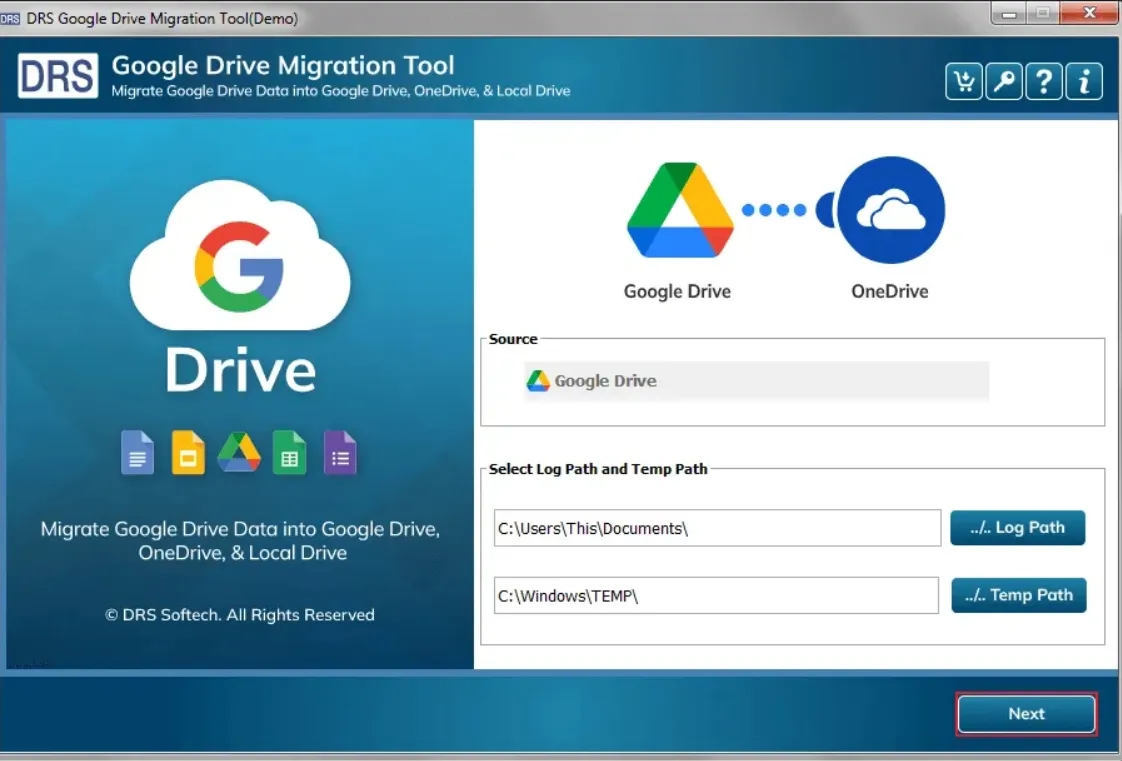
Firstly, download and install the CloudMigration Google Drive Migration Software → Click Next to move ahead.
Step 2
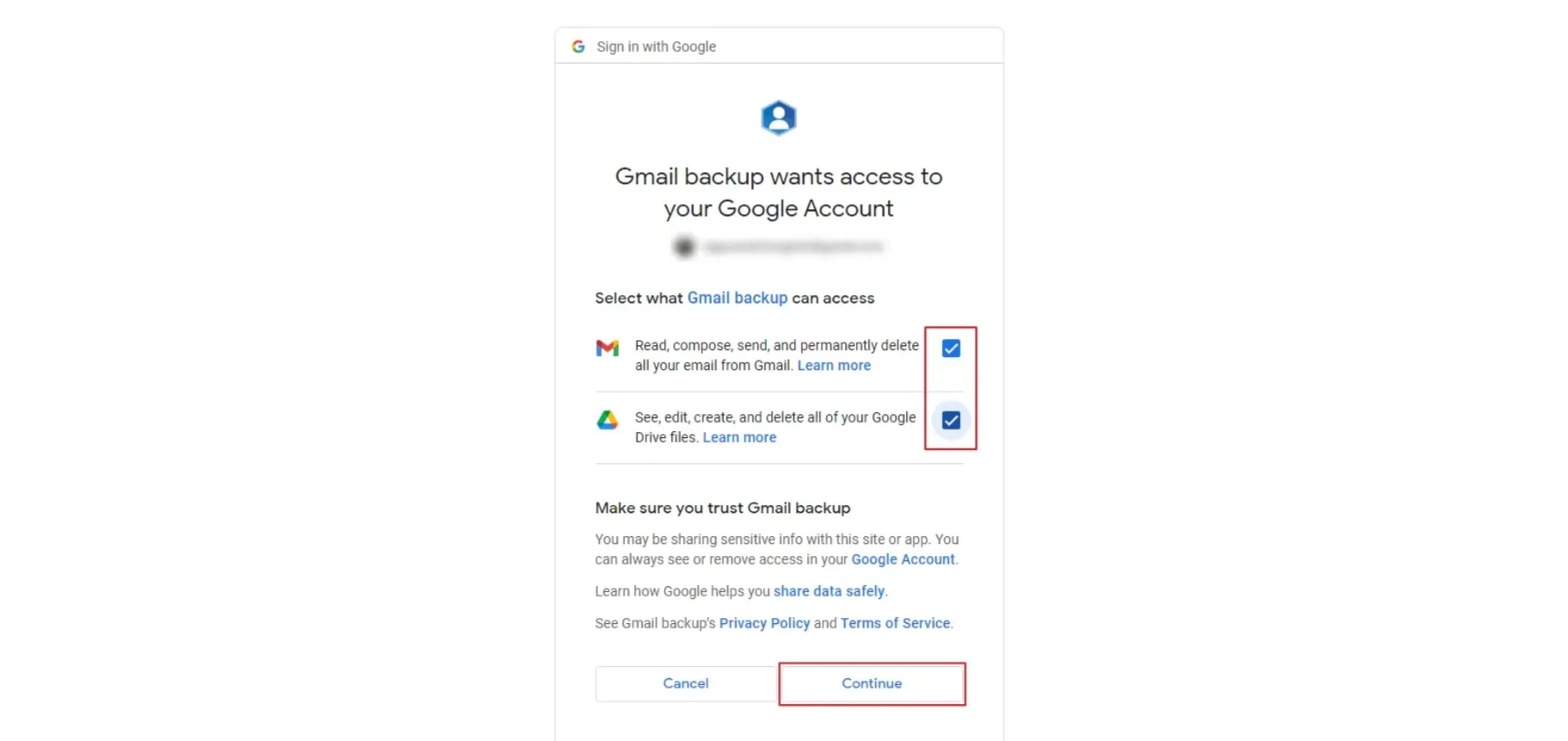
Now, log in using your Google Drive Account credentials → Tap Continue to the next page.
Step 3
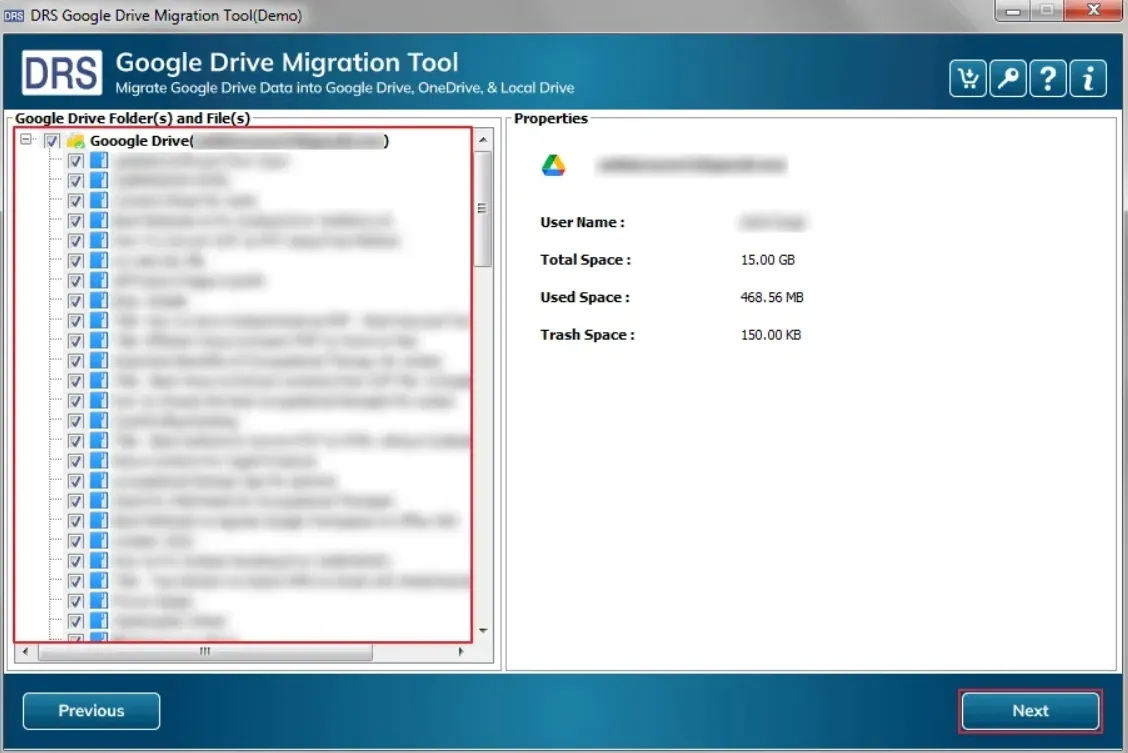
After that, preview the folder → Select the file that you want to convert → Hit Next.
Step 4
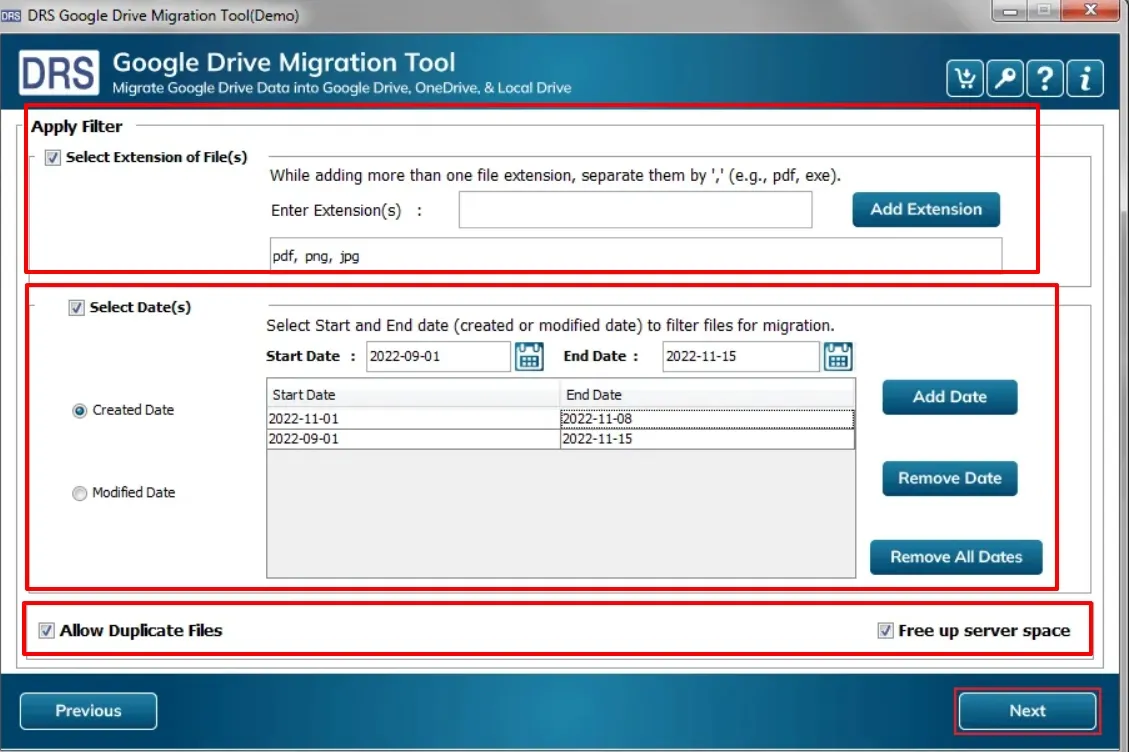
Further, apply the advanced filters (if needed):
- Select Extensions of File(s): You can choose the specific file types (e.g., .docx, .pdf) to include in the process.
- Select Date(s): Filter files based on creation or modification dates for selective processing. Also, you can add and remove the date when needed.
- Allow Duplicate File(s): Enable or disable the inclusion of files that already exist in the destination.
- Click Next
Step 5
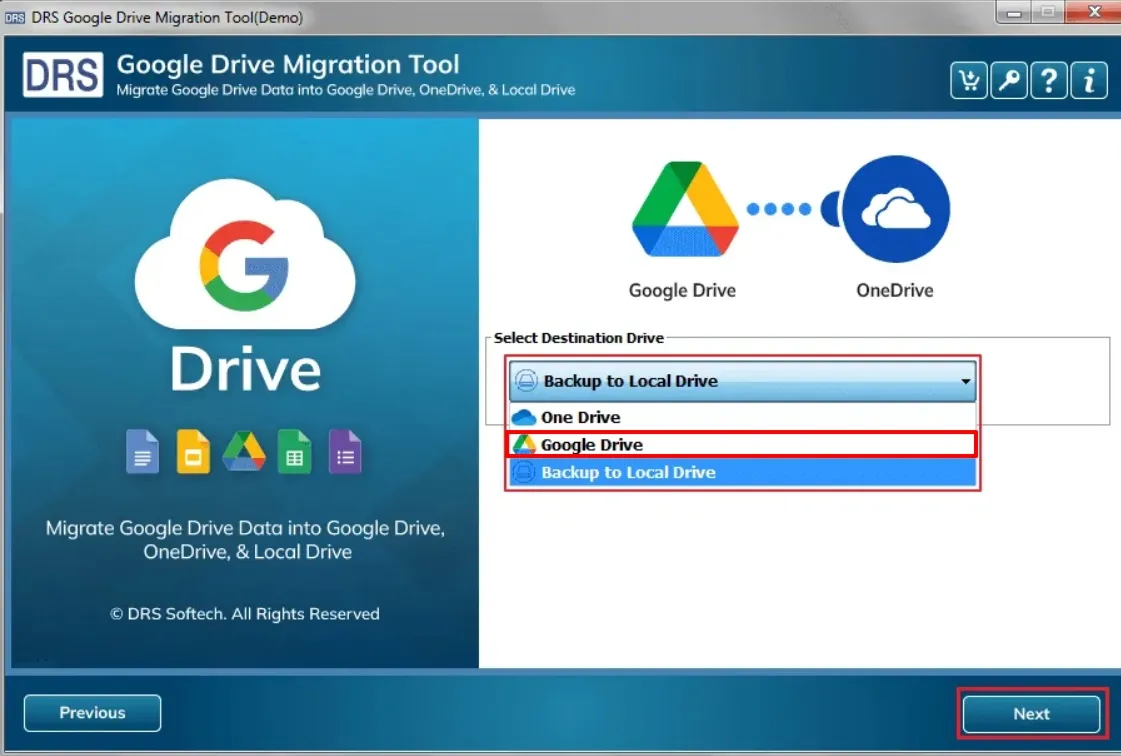
Subsequently, select the Google Drive as the saving destination → Next.
Step 6
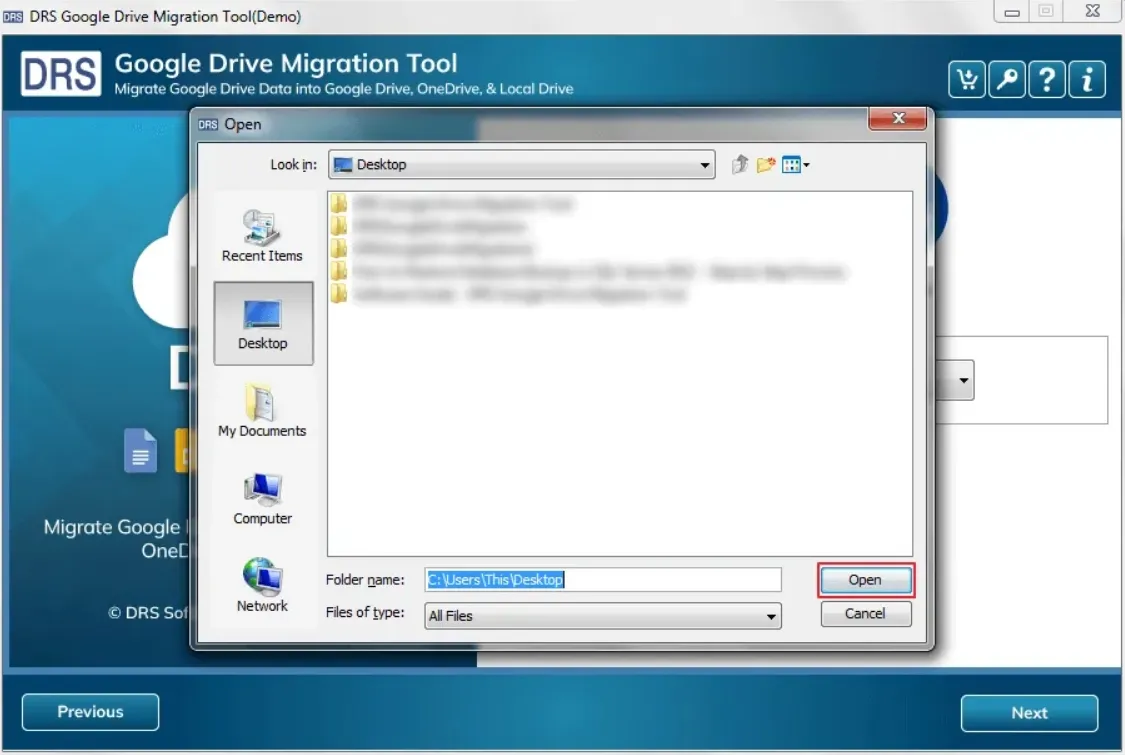
Lastly, assign the name to the folder that you want to open → Click Next to start the migration.
Step 7
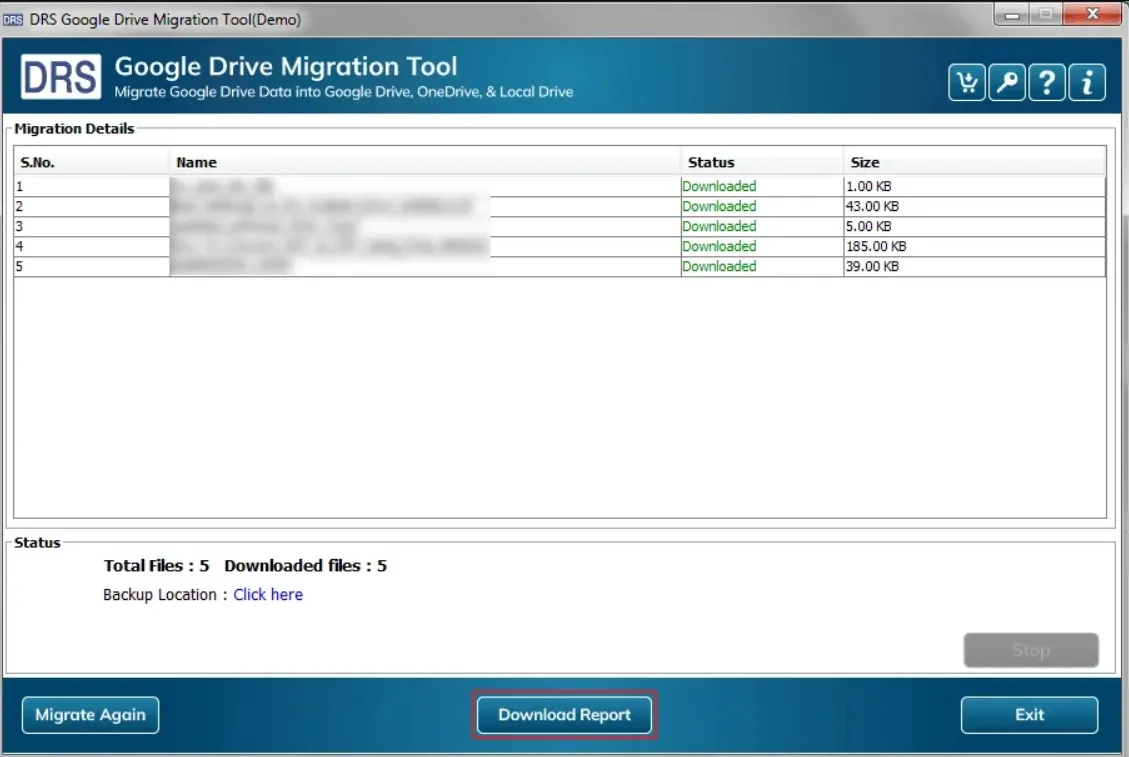
Download the conversion report (if necessary).