product-box

Essential Strengths of the Google Drive Migration Tool

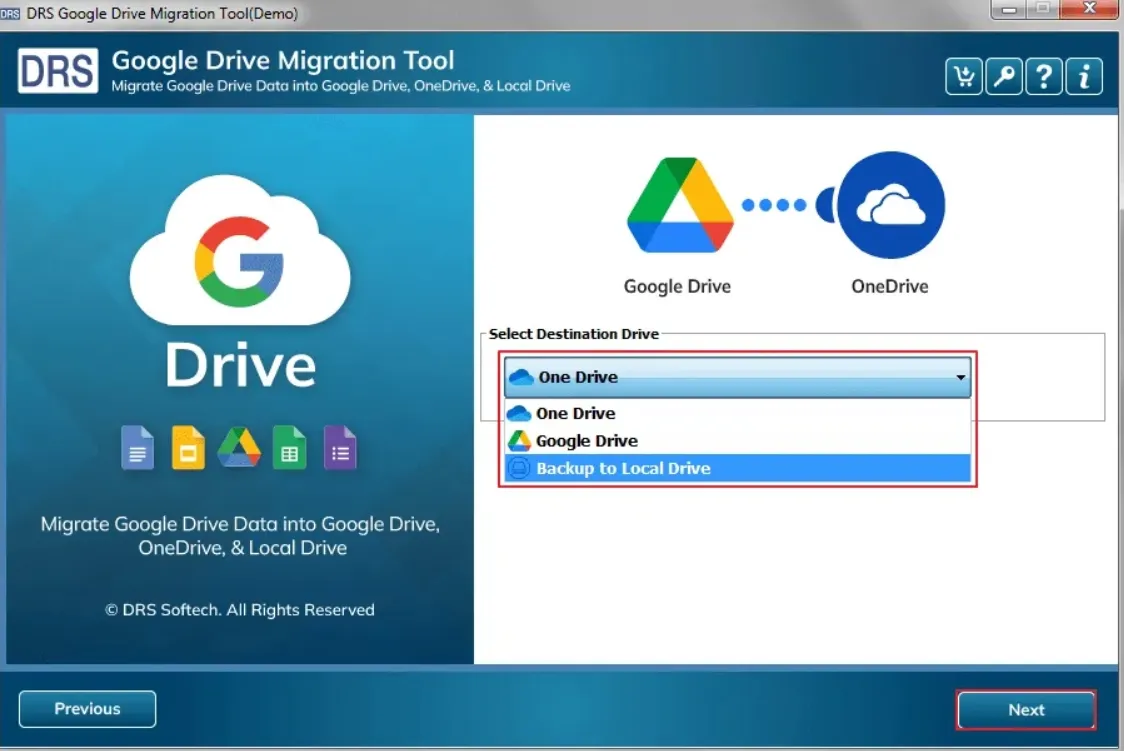
  • checkSeamlessly transfer all Google Drive data to another Google account.

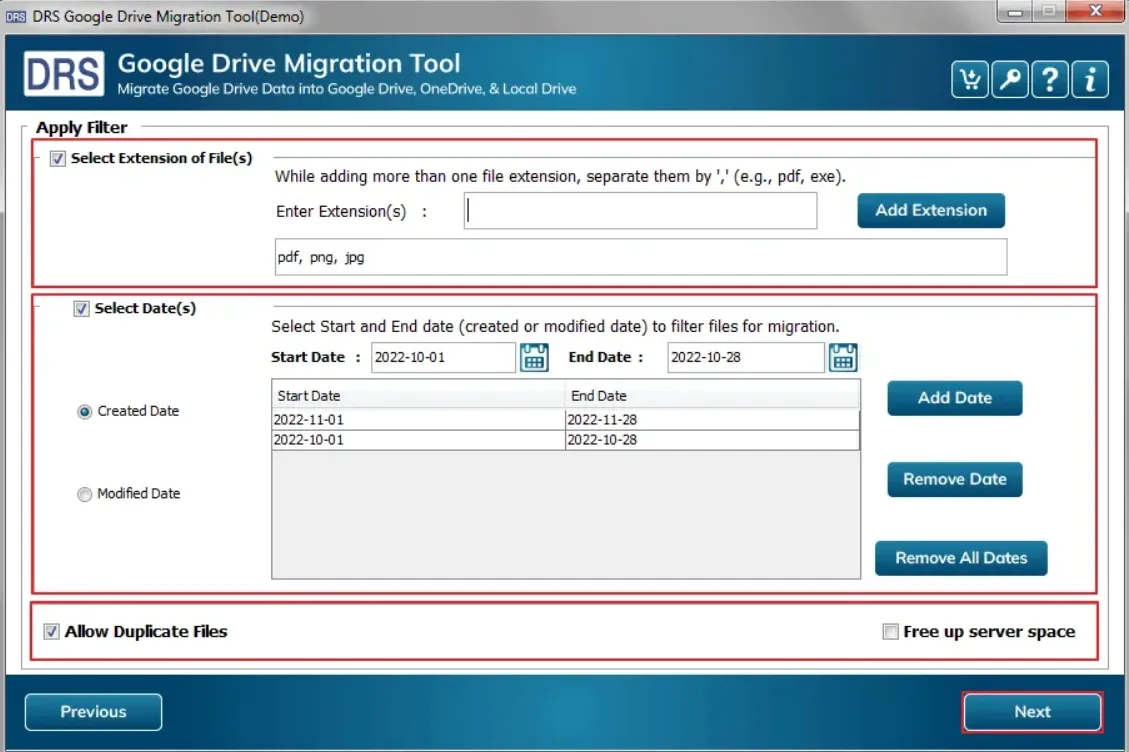
  • checkMigrate only chosen items using various advanced filter options.
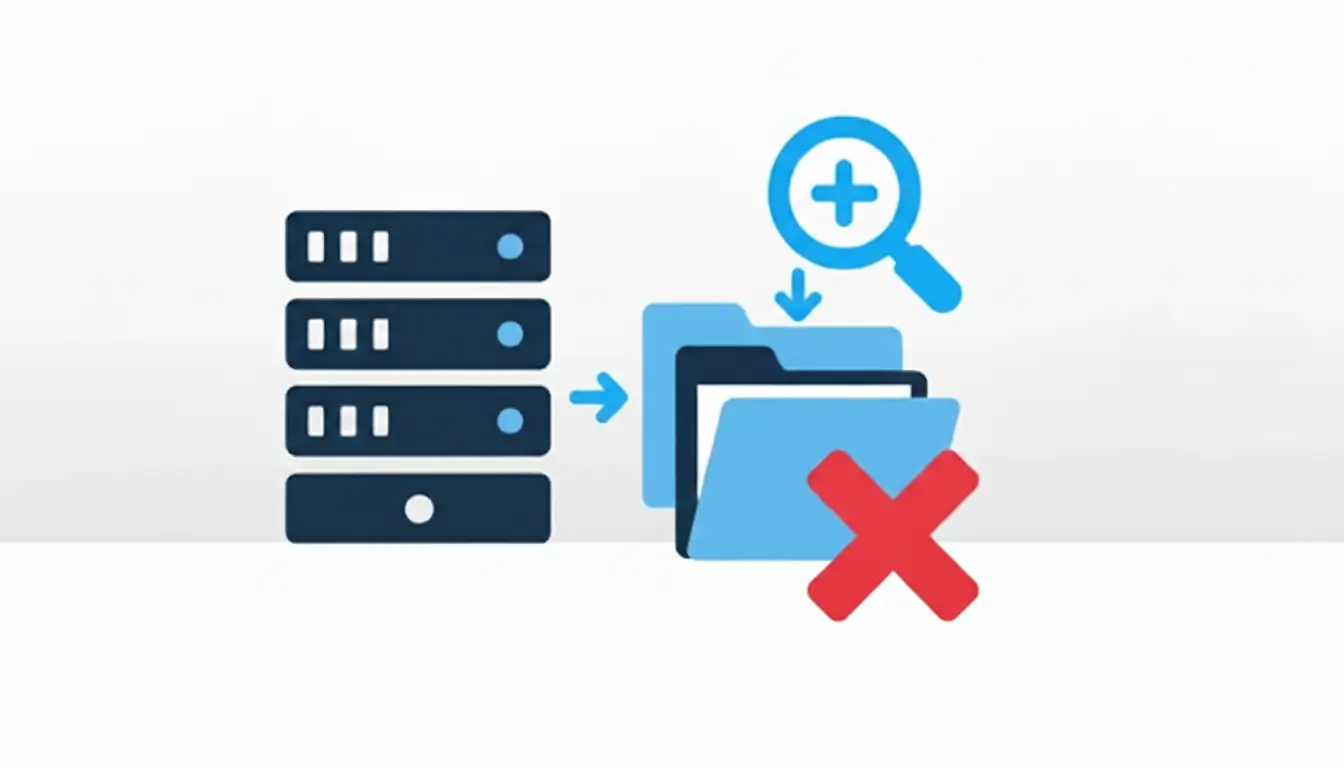
  • checkAutomatically identifies and removes duplicate files during migration.
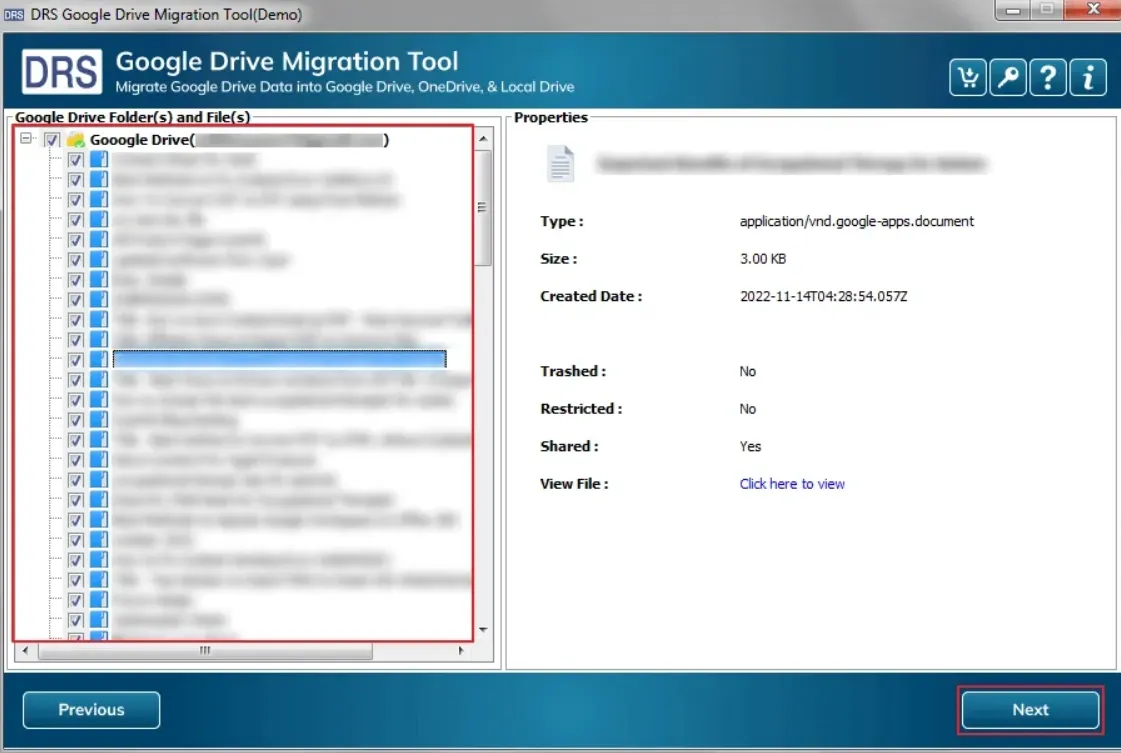
  • checkDisplays detailed information of selected files, such as type, size, etc.
  • checkIncludes a preview option to review files before starting the migration.
  • checkSupports selective migration based on user-specific requirements.
  • checkAllows data migration within a defined date range.
  • checkProvides an option to clear Google Account storage after migration.
  • checkGenerates a comprehensive migration report once the process is complete.
  • checkFully compatible with all Windows, versions, including 11, 10, 8.1, 8, 7, Vista, and XP.

Ideal Situations to Use the Google Drive Migration Tool?

data-transfer
When You Want to Transfer Google Drive to Another Account

When you need to move your Google Drive data to another account quickly and safely, this tool ensures a smooth transfer while keeping your files and structure intact.

backup
When You Want an Extra Layer of Security with Local Backups

When you want added protection, the tool lets you create secure local backups of your Google Drive files, ensuring your data stays safe even if your cloud storage faces issues.

remove-large-duplicates-files
Optimize Google Drive Space Effortlessly Using This Software

Easily clear unnecessary or duplicate files using this tool to optimize your Google Drive storage. It helps you reclaim valuable space while keeping only the data that matters.

Maximize Efficiency With the Google Drive Migration Tool

transfer-from-personal
Seamlessly Transfer Google Drive Data Between Accounts

With the CloudMigration Google Drive conversion Tool, you can effortlessly transfer your entire Google Drive data to another account. It ensures all file types, documents, spreadsheets, images, and videos are migrated securely, preserving the original folder structure and file integrity. Users can also apply filters to move only the files they need, making the process faster and more efficient.

backup
Easily Create Local Backups of Your Google Drive Data

The Google Drive Exporter Tool allows you to securely back up all your Google Drive files to your local hard drive. This ensures your important documents, images, and videos are safely stored offline, providing an extra layer of protection against accidental deletion or cloud access issues. The process is fast, reliable, and keeps your data organized exactly as it appears in Google Drive.

onedrive-migration-software
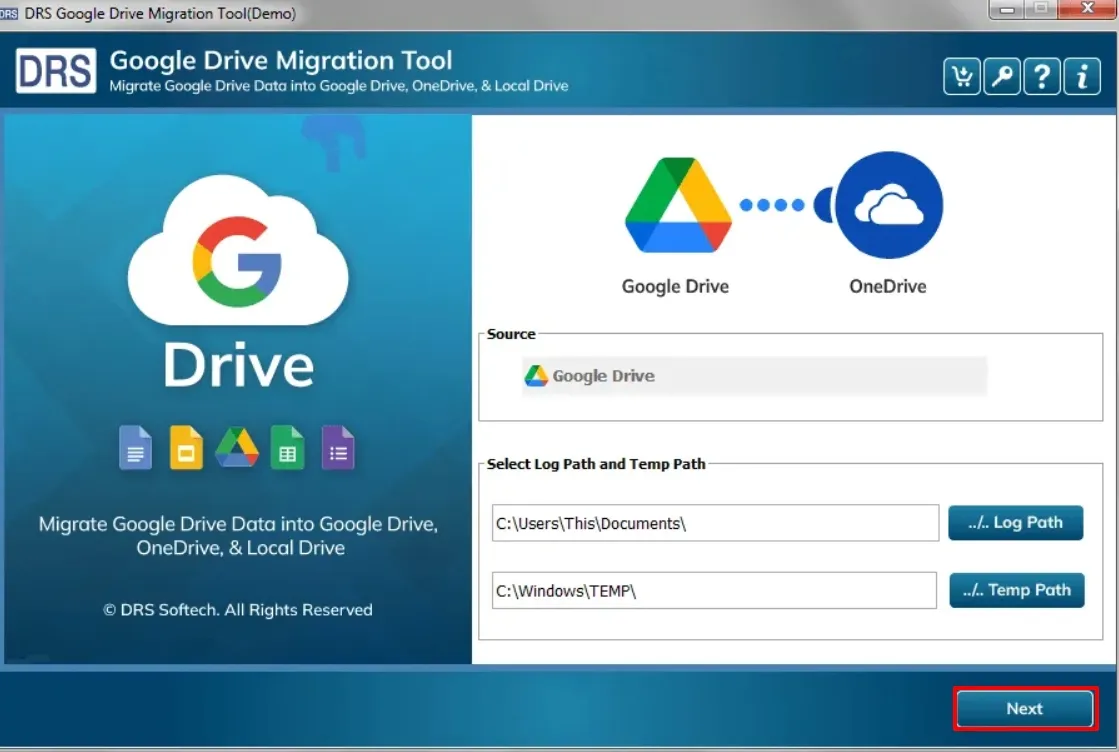
Seamlessly Transfer Google Drive Files to Another OneDrive Account

The Google Drive Migrator enables users to move their Google Drive data directly to a OneDrive account with ease. All file types, including documents, images, videos, and spreadsheets, are transferred securely while maintaining their original structure. This feature simplifies cross-platform migration, allowing you to consolidate or switch cloud storage accounts without losing any important data.

migration
Migrate Only the Google Drive Files You Need

The Google Drive Data Migration Tool gives you the flexibility to transfer only selected files or folders instead of your entire Drive. With advanced filtering options, you can choose specific file types, sizes, or date ranges for migration. This ensures a faster, more efficient process while moving exactly the data you need, saving time, extra efforts, and storage space. Also, it ensures every detail is kept intact with zero data loss.

clean
Clear Google Drive Storage Post-Migration

The Google Drive Migration Software includes an option to free up your Google Drive storage after completing the migration. By removing migrated files from the source account, you can reclaim valuable cloud space, keep your Drive organized, and ensure optimal storage management without the risk of data loss.

remove-duplicates
Automatically Skip Duplicate Files During Migration

The Google Drive Migrator can automatically identify and exclude duplicate files during migration or backup. This ensures that unique files are transferred, saving time and effort and reducing storage usage, and keeping your destination account or local backup clean and well-organized.

date-range
Migrate Google Drive Files Based on Specific Date Ranges

Migrate Google Drive to OneDrive allows users to selectively migrate files based on a specific date range. This feature helps transfer only the most relevant or recent data, making the migration process faster and more efficient while avoiding unnecessary files. It’s ideal for managing large accounts and keeping your destination organized.

free
Try the Free Version of the Migration Tool

The free version of the Best Google Drive Migration Tool allows users to explore its core features and capabilities before upgrading. You can test file transfers, selective migration, and backup options, ensuring the tool meets your requirements. This trial provides a risk-free way to evaluate performance, speed, and reliability for seamless Google Drive management.

Strengths That Set the Google Drive Migration Tool Apart

Product Features Free Version Full Version
Migrate Google Drive to another account Up to 20 MB No Limitations
Transfer Google Drive to OneDrive Up to 20 MB No Limitations
Save Google Drive to Local Drive Up to 20 MB No Limitations
File preview available
Select file extensions for targeted migration
Date Range-based migration
Exclude or include duplicate files
Free up server space
24*7 Technical Support
Download and Purchase Download Purchase

Useful Guide to Use the: Google Drive Migration Tool

Software Specification:Google Drive Migration Tool

about
About Product
  • Version: 25.7
  • License: Single, Administrator, Technician, & Enterprise
  • Edition: Personal, Commercial, Corporate, Large Commercial
  • Size: 126 MB
requirements
System Requirements
  • Processor: Intel® Core™2 Duo E4600 Processor 2.40GHz
  • Operating Systems: Windows OS 11, 10, 8.1, 8, 7, Vista, XP, 2000, 95, NT, and all earlier and major ones.
  • RAM Utilization: Minimum 4 GB RAM (4GB Recommended)
info
Additional Information

Ans: Follow the steps below if the software is not working properly on your PC
  1. Go to Windows Defender.
  2. Click on Settings.
  3. Turn off Real-Time Protection

Without disabling Controlled Folder Access, the application cannot install some essential programs. It is because the safety feature blocks anything that tries to modify user\{user name} or various other related folders.

Ans: The Antivirus programs block some parts of our application, which further hinders the tool's working. So, it is mandatory to temporarily disable the Antivirus program. To ensure proper working of the application, enable the Allow access (Whitelist) from the Antivirus settings.

Ans: Disable the antivirus and Windows Defender, and add the product to the exception list. The firewall and antivirus that protect your system from malicious programs also consider our product a threat. So, you need to deactivate the security features.

Ans: Yes, the tool supports SAN and NAS storage systems, provided that the file's access is transparent.
guide
System Guide
  • Installation Guide
  • Software Manual
  • EULA

Frequently Asked Questions:

ANS. Yes, the Google Drive Migrator supports selective migration. You can choose specific files or folders to migrate rather than transferring everything at once. This is handy when you want to move only what’s needed and skip unnecessary items.

ANS. Yes, the Google Drive Data Migration Tool is designed to maintain the original structure of your Drive files. Metadata like file type, size, creation date, sharing status, and other attributes stay intact during migration, ensuring the destination mirrors the source.

ANS. The Google Drive Migration Software supports all common file types stored in Google Drive. This includes documents, spreadsheets, PDFs, images, videos, and other standard formats.

ANS. Yes, the Google Drive Migrator lets you apply filters, including date-based filters, to migrate only files from a certain date range or matching specific criteria. This helps you migrate relevant or recent data while leaving old or unnecessary files behind.

ANS. One of its built-in features is to automatically identify duplicate files and exclude them during the migration or backup process. This helps avoid redundancy and saves storage space.

ANS. The tool allows you to view selected files and their details (like file type, size, creation date, share/permission status) before migration starts. This ensures you move data between Google Drive Accounts.

ANS. Of course. Besides migrating between Drive accounts, the tool enables you to back up your data locally. This gives you a secure offline copy, adding an extra layer of protection in case of cloud issues.

ANS. If the destination account lacks enough storage space, migration will likely fail or produce errors. It’s advisable to check storage availability in advance and ensure there’s enough quota before starting a large migration.

ANS. The best Google Drive migration tool supports a wide range of Windows versions, including Windows 11, 10, 8.1, 8, 7, Vista, and XP (as per your specification).

ANS. Yes, after the migration or backup finishes, you can download a comprehensive report summarizing transferred files, skipped duplicates, and other relevant details. This helps you verify success and audit what moved where.
faq-img

What Our Users Say About Us

CloudMigration’s Google Drive Migration Tool saved me hours. I moved over 20 GB of files to my new account without losing a single document. The process was seamless and worry‑free.

image
Sarah

(Operations Manager)

I used this tool to back up years of photos and work files before switching accounts. Everything transferred perfectly, folder structure intact. Highly recommend it!

image2
Michael Thompson

(IT Administrator)

What I love most is the flexibility of the software. I only migrated the files I needed using the filters and skipped duplicates. Super efficient and clean.

image3
Emily

(IT Administrator)

Excellent tool! The preview before migration gave me confidence that only the right files would move. Post‑migration report was a nice touch.

image4
David

(Freelance Designer)

logo

Millions of users have migrated their data securely using Cloud Migration Software. Stop performing complex DIY techniques and switch to the best solutions.